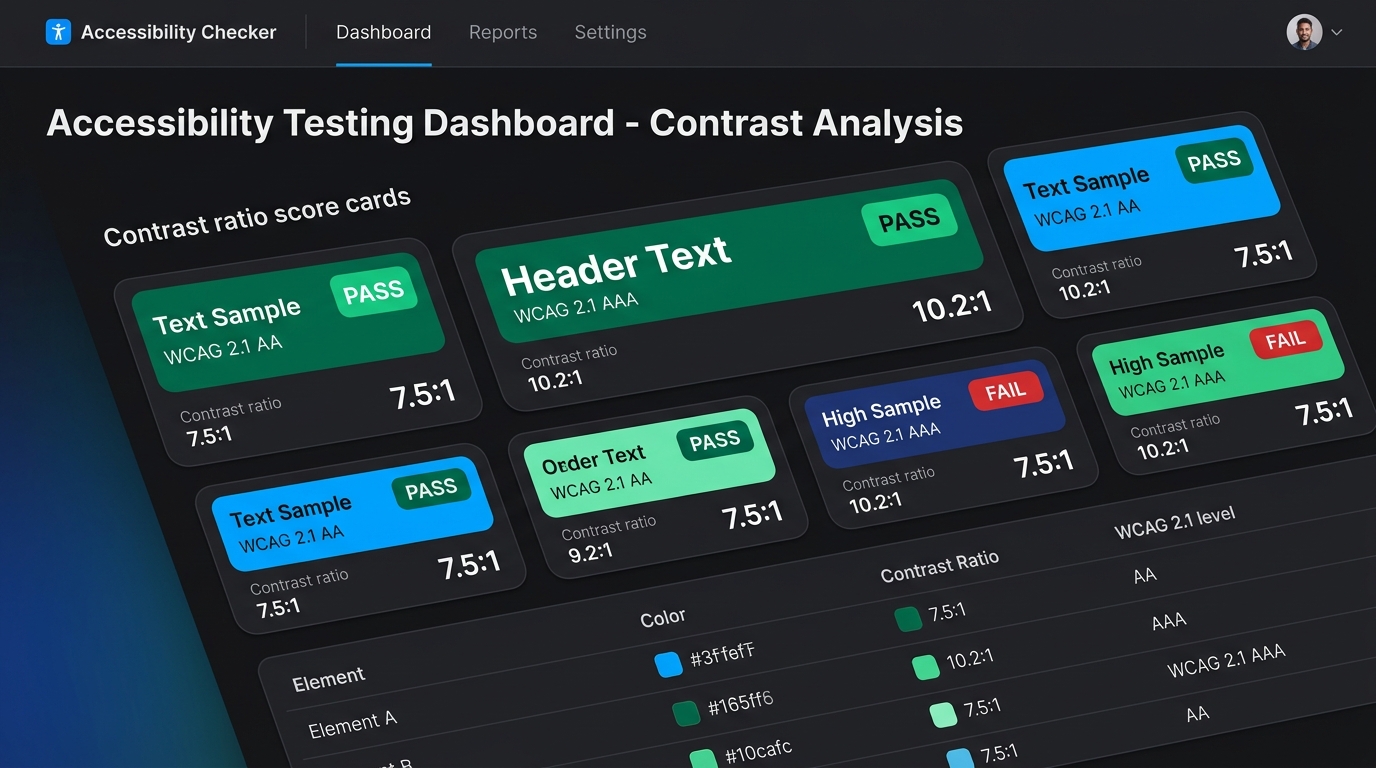
The Great Myth: "Accessibility Makes Design Boring"
For years, a pervasive misconception has circulated in design communities: that complying with Web Content Accessibility Guidelines (WCAG) forces interfaces to look sterile, clinical, or dull. Product teams often treat accessibility audits as a bureaucratic hurdle slapped on at the end of a sprint rather than a foundational design pillar.
The truth is precisely the opposite: accessible design is high-performance design. When users cannot read your pricing table subtitles, or when your "Start Free Trial" button washes out against a pastel gradient on a sunny mobile display, your product suffers. Accessibility is not just for the visually impaired; it benefits every user navigating on a glare-filled screen, an aging monitor, or during late-night work sessions.
Decoding WCAG 2.1 Contrast Standards (Without the Math Headache)
The World Wide Web Consortium (W3C) defines color accessibility through relative luminance contrast ratios, which scale from 1:1 (pure white on pure white) to 21:1 (pure black on pure white). Here are the real benchmarks you must understand:
Required for regular body text (below 18pt or 14pt bold). Guarantees effortless legibility on desktop and mobile displays.
Gold standard for long-form reading, documentation, legal copy, and critical medical or financial platforms.
For large typography (18pt / 24px and above, or 14pt / 18.66px bold) and graphical UI components (borders, radio buttons, interactive icons), the minimum requirement drops to 3.0:1. You can verify any two hex values instantly with our interactive WCAG Contrast Checker.
The Dangerous Trap of "Button Hover" Contrast
One of the most frequent accessibility audit failures occurs not in the default button state, but in its hover and focus states. Consider this common mistake:
- A developer designs a primary button with a bright blue background (
#3B82F6) and white text (#FFFFFF). Contrast ratio: 4.6:1 (Passes AA). - On mouse hover, they apply a subtle opacity filter:
opacity: 0.8or lighten the hue to#60A5FA. - Suddenly, the contrast between white text and the lightened background plunges to 2.8:1—a direct WCAG violation right when the user engages!
Best Practice: When designing hover and active states for light-background buttons, always darken the background shade (e.g., transition from #2563EB to #1D4ED8). Darkening improves the contrast ratio rather than destroying it.
Designing for Color Blindness: The Non-Color Cue Rule
Approximately 8% of men and 0.5% of women worldwide have some form of color vision deficiency (CVD), most commonly red-green blindness (Deuteranopia and Protanopia). To build an accessible interface, never rely on hue as the sole transmitter of critical status information:
-
Error Messages: Pair your red border (
#DC2626) with an exclamation icon (`!`) and clear helper text: "Email address is required." -
Success Alerts: Pair green (
#10B981) with a checkmark symbol (`✓`) rather than expecting all users to distinguish green from amber. -
Form Validation: Add persistent labels and underline focus indicators (
outline: 2px solid var(--accent); outline-offset: 2px;) instead of relying on a subtle border color shift alone.
A Complete Production-Grade Accessible Token Set
Here is a battle-tested accessible CSS custom property configuration that satisfies WCAG 2.1 Level AAA for text and Level AA for UI components:
How Contrast Drives Business Conversions
Major research from the Nielsen Norman Group confirms that user hesitation drops significantly when visual hierarchy is unambiguous. In one prominent A/B case study, improving call-to-action button contrast from 2.9:1 to 7.1:1 resulted in a 24.6% increase in click-through conversions across mobile devices.
When users do not have to strain to identify the primary interactive affordance, their path to purchase or signup is frictionless. Accessibility and profitability are two sides of the same coin.
Next Steps: Audit Your Palette Today
Ready to optimize your application's accessibility and conversion rates? Explore these free tools on UIColorBlocks:
- Inspect individual hex codes with full luminance breakdowns in the HEX Color Inspector.
- Extract harmonious palettes from live product screenshots with the Image Palette Extractor.
- Browse our full catalog of accessible, pre-audited themes in the UI Palettes Library.
- Convert between RGB, HSL, and CMYK formats in our Color Converter.